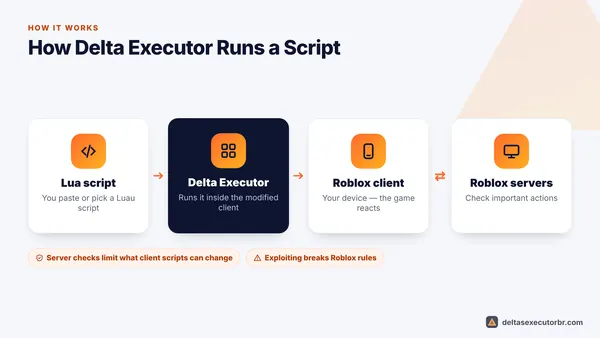
To use Delta Executor: open a Roblox game inside Delta, tap the floating Δ button, paste a script into the editor (or pick one from the Script Hub) and tap Execute. Use Clear to empty the editor, Save to keep scripts and Auto-execute to run them every time a game loads.
Before You Start
- Install the latest build: Android, iOS or PC.
- Get an active key — see how to get the Delta key.
- Log in with a secondary Roblox account (using executors can lead to bans).
The Delta Executor Interface Explained
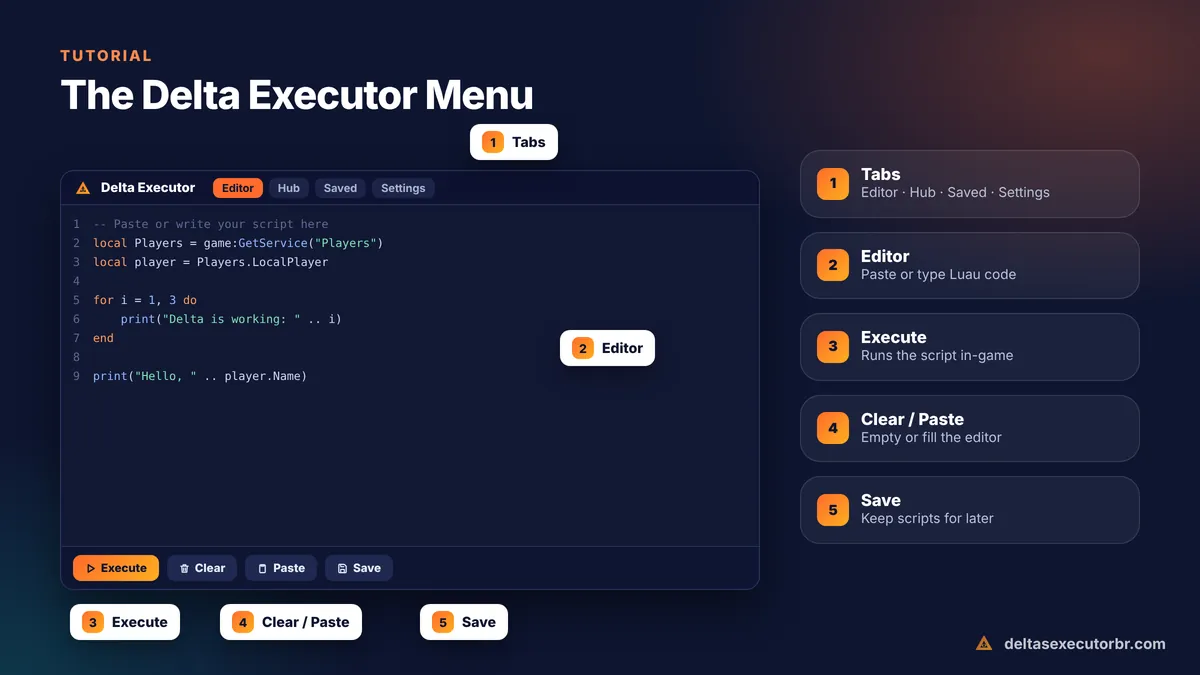
| Part | What it does |
|---|---|
| Δ floating button | Opens and hides the executor during a game. Drag it to move it. |
| Editor / Executor tab | Where you paste or type a script. |
| Execute | Runs the script in the editor. |
| Clear | Empties the editor. |
| Paste | Pastes your clipboard into the editor. |
| Save / Saved scripts | Stores scripts you use often. |
| Script Hub | Search community scripts by game. |
| Settings | Button size, theme, auto-execute and other options. |
How to Run Your First Script (Step by Step)
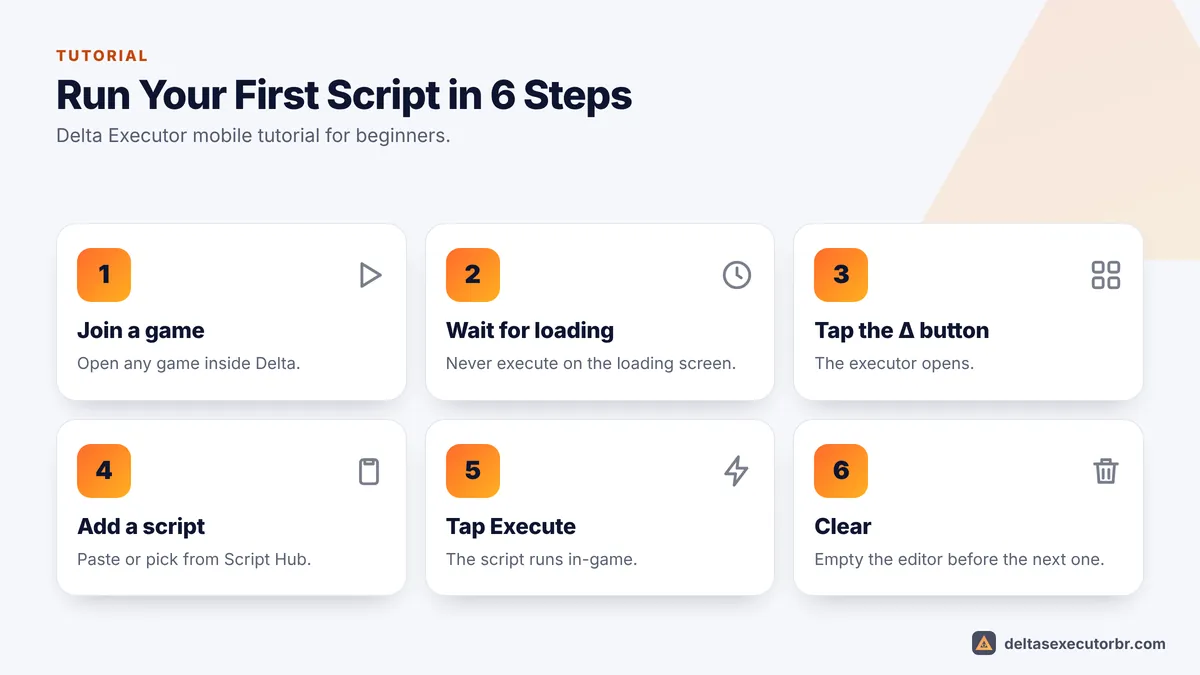
- Open Delta and join a game Launch Delta (not the official Roblox app) and join any experience.
- Wait for the game to load Executing during the loading screen is the most common beginner mistake.
- Tap the Δ button The executor opens on the Editor tab.
- Add a script Tap Paste, or open the Script Hub and choose a script for this game.
- Tap Execute If the script has a menu, it appears on screen. Close Delta's menu with the Δ button to play.
- Clear before the next one Tap Clear so two scripts do not mix.
Test that Delta works: paste print("Delta is working"), tap Execute and open the console (if your build has one). If the message appears, the executor is fine and any problem is with the script you are trying.
Using the Delta Script Hub
The Script Hub lets you search community scripts from inside Delta. Type the game name, open a result and tap Execute or Save. A few rules keep you safe:
- Prefer scripts with many uses and recent updates.
- Skip scripts that are fully obfuscated (unreadable) and come from unknown authors.
- Never run a script that asks you to enter a password, cookie or trade items.
Saving Scripts and Auto-Execute
If you use the same script every day, save it: paste it in the editor, tap Save and give it a name. Saved scripts appear in the Saved tab, ready to run with one tap.
Auto-execute runs chosen saved scripts automatically when a game loads. Turn it on in Delta's settings and mark the scripts you want. Keep the auto-execute list short — too many scripts at once can freeze low-end phones.
How to Use Delta Executor on iOS and PC
Once installed, Delta works the same everywhere. On iPhone, long-press the editor and choose Paste. On PC (emulator), click inside the editor and press Ctrl+V. Setup differences are covered in the iOS guide and the PC guide.
Beginner Mistakes to Avoid
- Executing before the game loads.
- Pasting half a script — long scripts get cut off when copied from some apps.
- Running several scripts that do the same thing at once.
- Using an outdated Delta build after a Roblox update — see how to update.
- Using your main account.
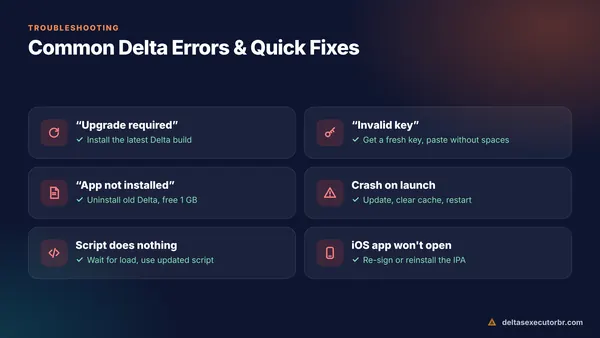
Something not working? Go to Delta Executor not working.
Use Delta Responsibly
Scripts can ruin other players' games, and Roblox bans accounts for exploiting. Many players use executors to explore their own experiences, test UI ideas or learn Luau. Whatever you do, respect other players and remember that the risk to your account is real.
- Join a game → Δ button → paste or pick a script → Execute.
- Save scripts you reuse and keep auto-execute short.
- Only run trusted scripts, and never on your main account.
Frequently Asked Questions
How do I open Delta Executor in a game?
Join a game through the Delta app, wait for it to load, then tap the floating Δ button. It opens the executor menu on top of the game.
Where do I find scripts for Delta?
Use the built-in Script Hub inside Delta to search by game name. Avoid scripts from unknown links, especially obfuscated ones or ones that ask you to log in somewhere.
How do I use Delta Executor on iPhone?
Exactly the same way as on Android: open a game in Delta, tap the Δ button, paste or pick a script and tap Execute. Only the installation is different — see the iOS guide.
What does auto-execute do in Delta?
Auto-execute runs selected saved scripts automatically every time you join a game, so you do not have to paste them each time.
Can I write my own scripts for Delta?
Yes. Delta runs Luau (Roblox's version of Lua). Learning Luau in Roblox Studio is the best way to understand what a script does before you run it.